A2 - Opening IBA Studio from jupyter#
IDFViewer is the Graphic version of pyID. To use and learn more about the project head to IBA Studio.
Here we are going to demonstrate a useful trick that allows for loading IDFViewer directly from the jupyter notebook. This can be very useful checking quickly the IDF files we are working on.
[20]:
# if pyIBA has been installed with pip3,
# the above 4 lines can be removed
import sys
from os.path import abspath
path_pyIBA = abspath('../../../../..')
sys.path.insert(0, path_pyIBA)

# import pyIBA
from pyIBA import IDF

# set the path to iba_studio.py
IBA_Studio =  sys.path[0] + '/../iba_studio.py'
For demonstration, we will use the the IDF file with mutiple techniques created in Example A1.
[21]:
path_file = '../Example_a1/IDF_multi_techinques.xml'
You can edit the file as you want next, just make sure you save the changes. Them, to open the file using the GUI IDFViewer run:
[22]:
!python3 $IBA_Studio $path_file
QSocketNotifier: Can only be used with threads started with QThread
Opening file...
Path: ../Example_a1/
File: IDF_multi_techinques.xml
Note: the handling
python3will differ from system to system. See Note.
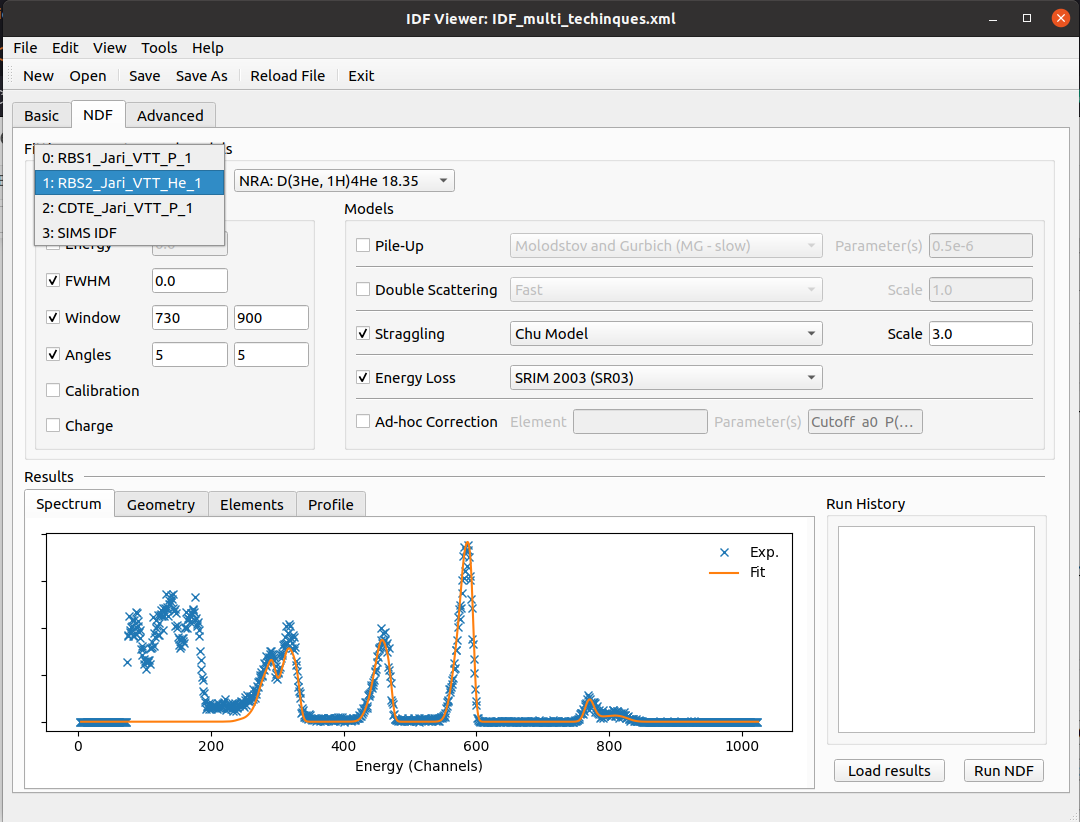
The IBA Studio window should show up with the IDF file loaded as shown in the images below.